
Try a remote session
Choose Remote control in the left menu, pick the PC you want to see, and its screen appears.
For people starting out
You do not need to know your way around a computer — there is no jargon here. Every step ends with “If it looks like this, it worked”so you can compare it with your screen and take your time.
What you need before you start
That is 5 minutes. That alone gets you encoding, photo resizing, backup and the calendar.
If you plan to add another PC (optional)
Doing this opens up remote control, opening another PC’s files, and sending files between machines. You do not have to do it now — any time later just come back to steps 4 and 5.
Press the download button and one file is saved — at the bottom of your browser or in the Downloads folder.
If the file is called IdleLink-Setup.exe you have the right one.
Double-click the file you downloaded and a blue warning window may appear. The IdleLink installer is signed and timestamped through Azure Artifact Signing. Its publisher is H&G Partners Co., Ltd.. SmartScreen evaluates app reputation separately from code signing, so some PCs may still call it an unrecognized app.
Windows protected your PC
Microsoft Defender SmartScreen prevented an unrecognized app from starting. Running this app might put your PC at risk.
More info
Press More info, verify the publisher is H&G Partners Co., Ltd., then choose Run anyway.
Choose More info, verify that the publisher is H&G Partners Co., Ltd., then choose Run anyway. If it says “Unknown publisher”, do not run it—contact us instead.
When the install finishes you get a sign-in screen. Use your usual account. It is how this PC gets marked as yours, so you only do it once.
If a menu appears down the left side after signing in, it worked.
If you only have one PC, you are done here. Encoding, photo resizing, backup and the calendar all work now. Steps 4 and 5 below are only for adding another PC — and they can wait.
Only when adding another PC
In the left menu open Invites and choose the code that matches the person or PC you are connecting. Use an Our PC code for an ongoing family or team connection, and a one-time code for temporary help. Codes for adding another computer of your own appear in the Main PC area on the same screen.
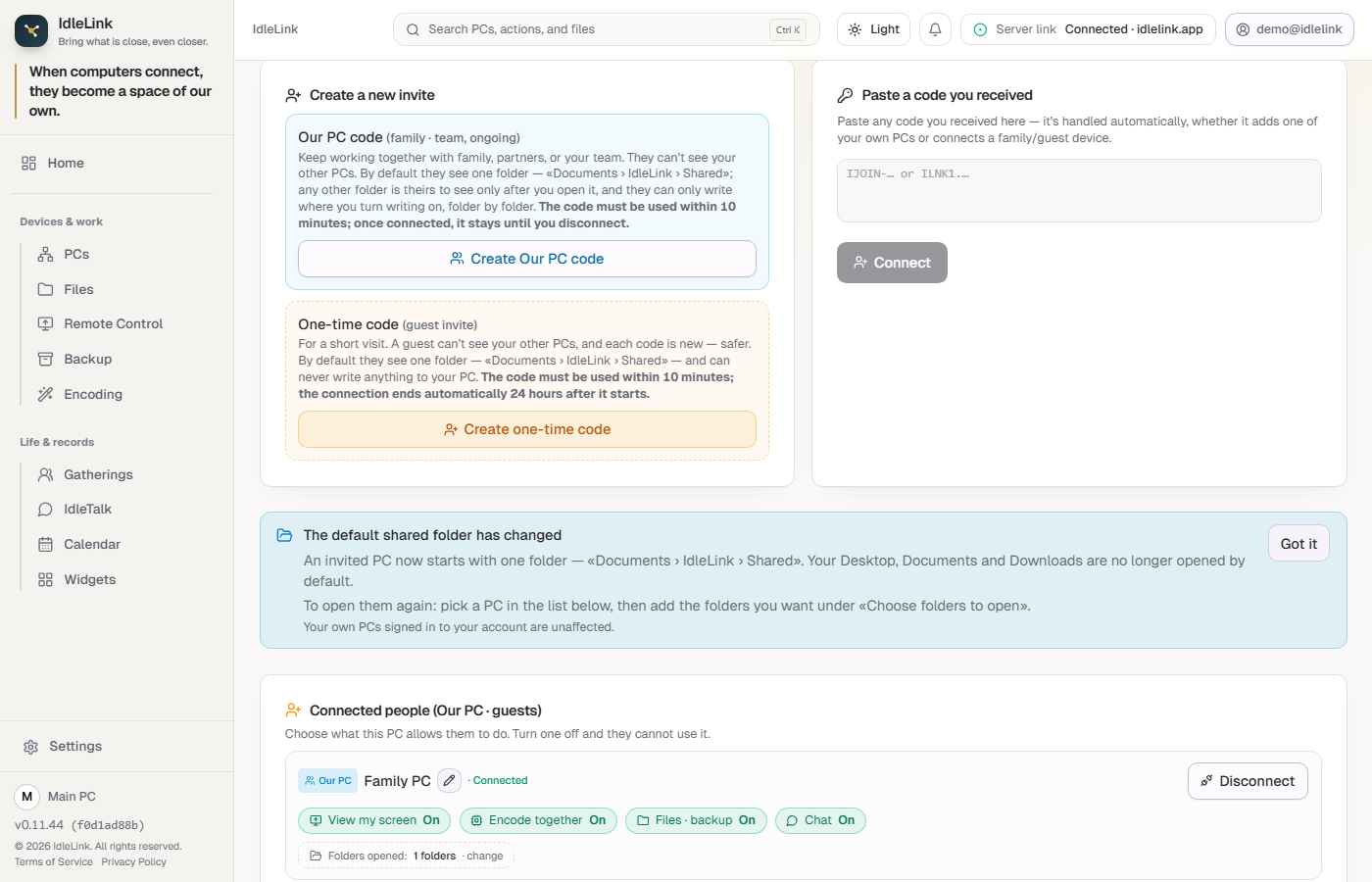
This is the current app screen. Only account and PC names were replaced with guide-safe names.
When you see the code, press Copy and send it. Use it within the time shown on screen.
Only when adding another PC
Do steps 1 to 3 on the second PC as well. Then, on the Invites screen, paste the code and press Connect.
Use the Paste a code you received box on the right side of the current screen above.
When it says connected, the two machines are one group.
In the left menu open PCs. Pick a group and a computer on the left; its online state, connection type, and Remote, Files, Backup, and Work actions appear on the right.
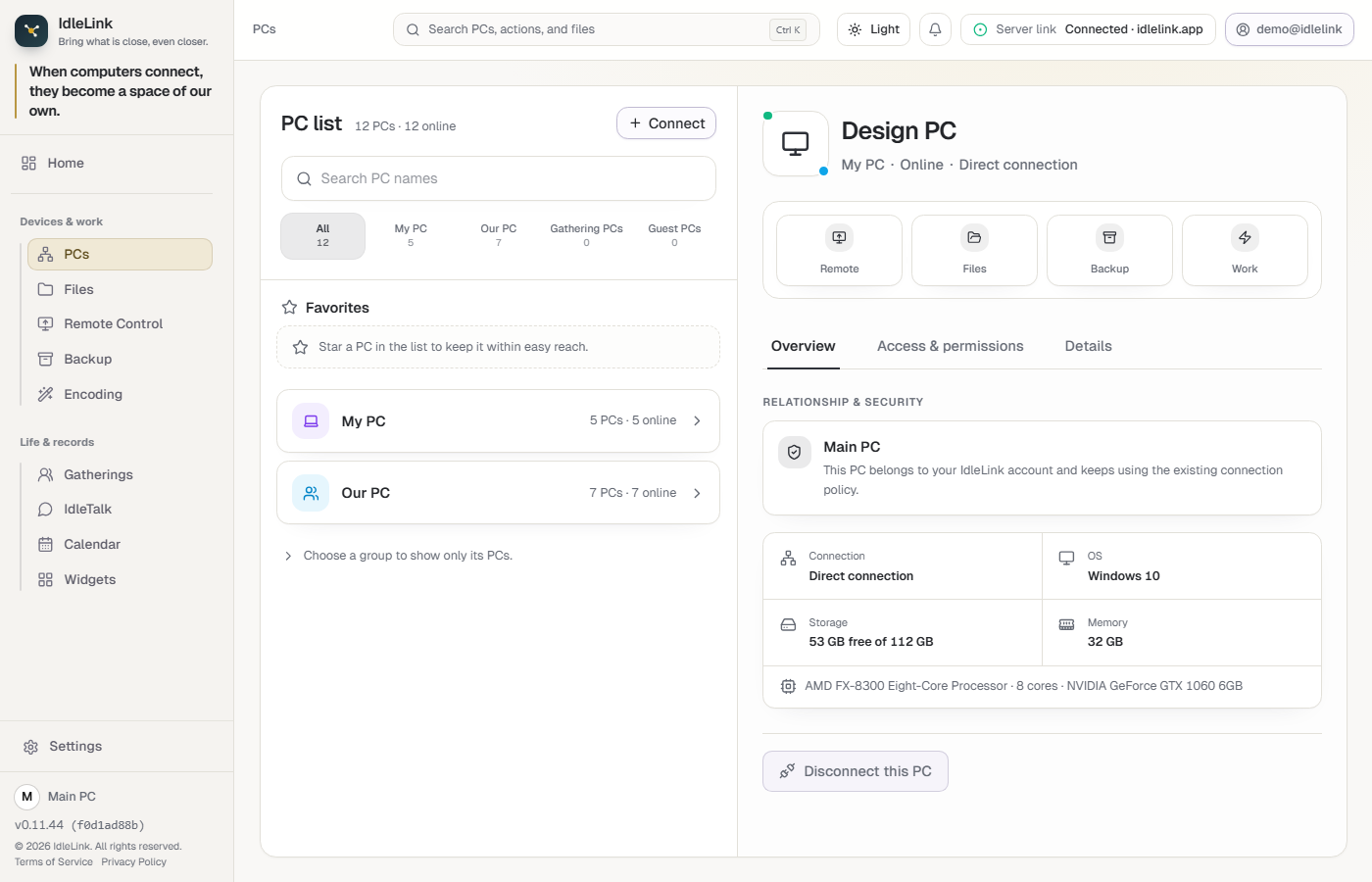
This is the current app screen. Only account and PC names were replaced with guide-safe names.
To add more PCs, repeat steps 4 and 5.
What you can try now
When something does not work
A code is only good for a short while. Create a fresh one on the first PC and try again. Also check which box you are using: your own machines go in “My PCs”, while family and friends go in “Our PCs · Guest”. Putting a code in the wrong box gives you this same message.
IdleLink has to be running on both machines. If you closed the window, click the icon near the clock at the bottom right to open it again. If it still does not show up, restart both PCs once.
The blue warning window may be hiding behind another one. Check the taskbar, then follow step 2 above — More info → Run anyway.
Between PCs on the same router it makes no difference, because the files never go out to the internet — they go straight from one machine to the other.
If your problem is not here, tell us. Just say which screen you got stuck on.
Write to support@idlelink.app and a person will read it.